Roblox developers are increasingly focusing on the precise control of UI elements using anchorpoint position Roblox This vital property allows for accurate scaling and placement of graphical user interfaces ensuring a consistent user experience across various screen sizes Mastering Roblox UI anchorpoint techniques can drastically improve game aesthetics and functionality Understanding how to manipulate the anchorpoint is fundamental for creating engaging and professional-looking games within the Roblox platform Players in the United States appreciate polished interfaces making this a critical skill for any aspiring Roblox creator From dynamic buttons to complex inventory systems proper anchorpoint usage enhances every aspect of in game interaction
What is the AnchorPoint property in Roblox?
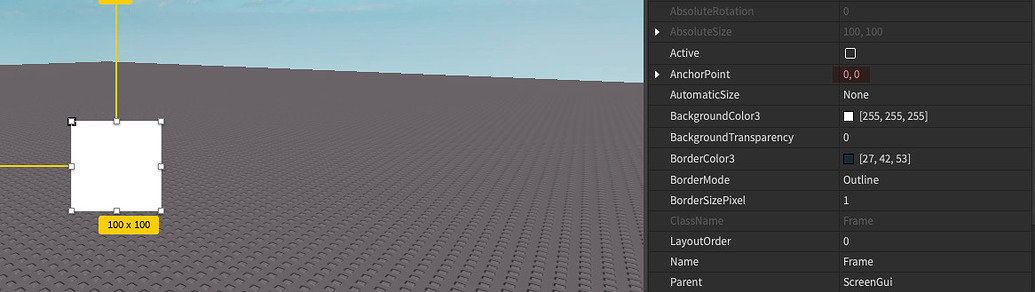
The AnchorPoint property in Roblox defines the pivot point for any UI element. It's a Vector2 value (X, Y) ranging from 0 to 1, where (0,0) is the top-left and (1,1) is the bottom-right. This determines how a UI element positions itself and scales relative to its parent, crucial for creating responsive interfaces across different screen sizes.
How do you make a GUI responsive in Roblox?
To make a GUI responsive in Roblox, always use 'Scale' for UI element sizes and positions instead of 'Offset'. Crucially, combine this with intelligent use of the 'AnchorPoint' property. Setting appropriate AnchorPoint values ensures that your UI elements maintain their relative placement and scale correctly, adapting seamlessly to various device resolutions and aspect ratios for a consistent user experience.
What is the difference between AnchorPoint and Position in Roblox UI?
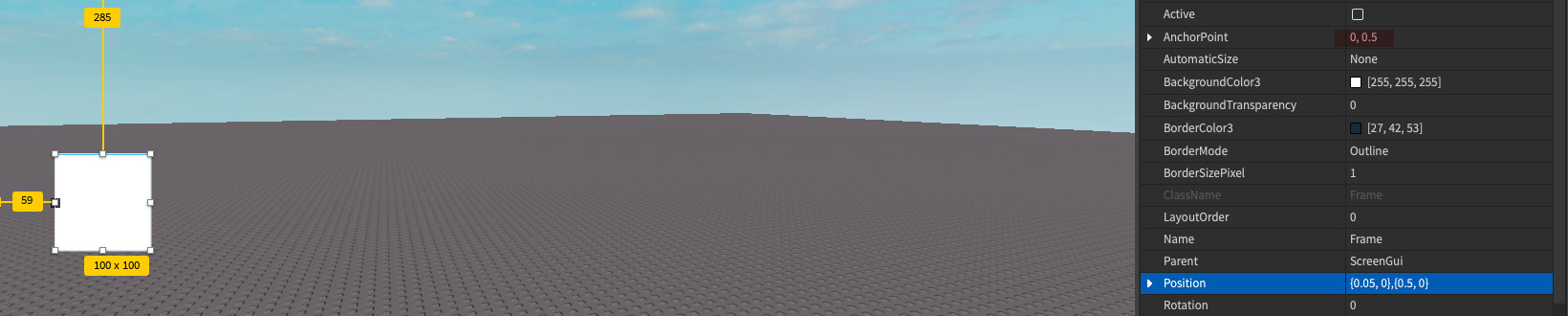
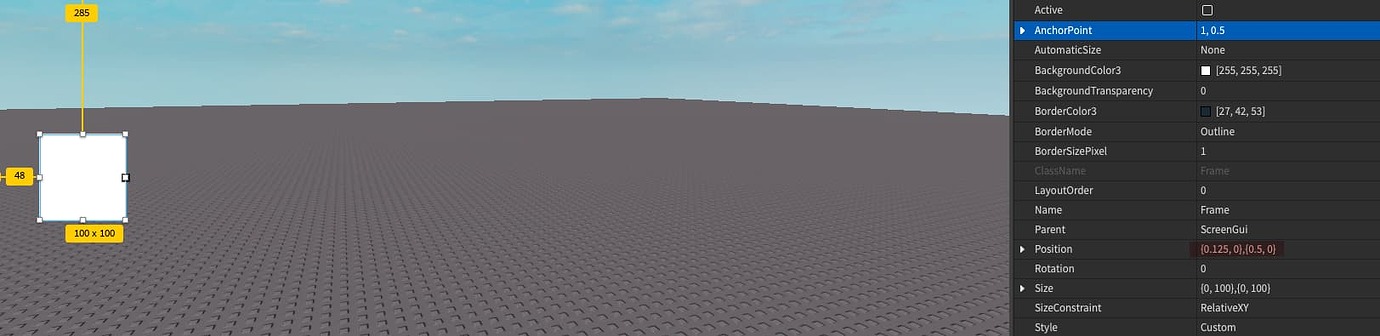
AnchorPoint sets the origin or pivot point *within* the UI element itself, affecting how it scales and positions relative to its own bounds. Position, on the other hand, determines the UI element's placement *relative to its parent*. Both work together: AnchorPoint defines where the element's own "origin" is, and Position then places that origin within the parent container.
Why is AnchorPoint (0.5, 0.5) often recommended in Roblox?
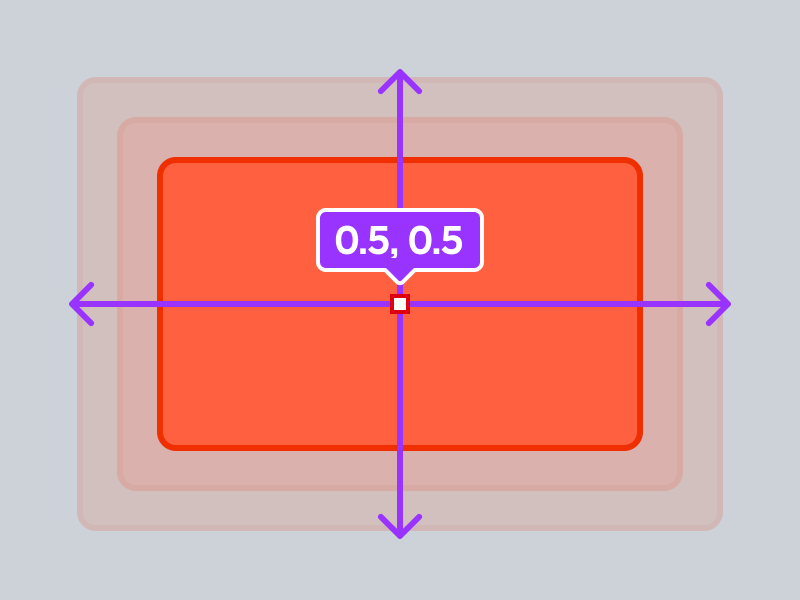
AnchorPoint (0.5, 0.5) is often recommended because it centers the UI element's pivot point. When combined with 'Scale' for positioning, this makes the element's center align with the specified scaled position. This approach simplifies responsive design, ensuring elements like buttons or text boxes stay visually centered relative to their parent container, leading to balanced and predictable UI layouts across diverse screens.
Can I animate AnchorPoint in Roblox?
While AnchorPoint itself isn't typically animated directly like a position or size, its *effect* can be dynamic. You would usually animate the position or size of a UI element, and the AnchorPoint then ensures that these animations behave predictably relative to the element's chosen pivot. For instance, a button shrinking towards its center would implicitly leverage an (0.5, 0.5) anchorpoint during its animation.
Are you struggling with your Roblox UI elements jumping around? Do you want your game interfaces to look perfect on any screen size? Mastering anchorpoint position Roblox is your ultimate solution. This critical property defines how UI elements are positioned and scaled, ensuring a seamless visual experience. It is fundamentally about setting the origin point of your UI objects, impacting their behavior significantly. For any developer aiming for professional-grade Roblox games, understanding this concept is non-negotiable. It truly transforms how your UI behaves and appears.
Demystifying AnchorPoint Position Roblox: What Exactly Is It?
The anchorpoint position Roblox specifies the origin point for a UI element within its parent. Think of it as a pivot around which the UI object operates. This property uses a Vector2 value, with components ranging from 0 to 1, representing corners from top-left (0,0) to bottom-right (1,1). Understanding this system is crucial for achieving pixel-perfect UI designs, as it dictates how elements respond to scaling.
Why AnchorPoint Position is Crucial for Roblox UI Success
Ignoring anchorpoint position Roblox can lead to inconsistent and broken user interfaces. It ensures your UI scales correctly across diverse devices like phones, tablets, and PCs. Without it, buttons might drift off-screen or text could become misaligned, impacting player immersion. Proper anchorpoint usage creates a professional and polished appearance, enhancing overall game enjoyment.
How to Master AnchorPoint Position in Roblox Studio
Implementing anchorpoint position Roblox is straightforward within Roblox Studio. Select your UI element, then locate the AnchorPoint property in the Properties window to adjust its X and Y values. For example, (0.5, 0.5) centers the element's origin effectively. Combine AnchorPoint with the Position property's 'Scale' mode for truly responsive designs.
Best Practices for Roblox AnchorPoint Position
- Always use anchorpoint position Roblox in conjunction with 'Scale' for UI element positioning and sizing.
- Center important elements using an AnchorPoint of (0.5, 0.5) for consistency.
- Group related UI elements within frames to manage their anchorpoints effectively.
- Test your UI on various screen resolutions and aspect ratios to ensure proper scaling.
- Develop a clear understanding of the coordinate system (0 to 1) for precise placement.
- Regularly review and refine your anchorpoint settings as your game evolves.
Below is a quick reference for common anchorpoint position Roblox values:
| AnchorPoint Value | Description |
|---|---|
| (0, 0) | Top-Left Corner |
| (0.5, 0) | Top-Center Edge |
| (1, 0) | Top-Right Corner |
| (0, 0.5) | Middle-Left Edge |
| (0.5, 0.5) | Center of Element |
| (1, 0.5) | Middle-Right Edge |
| (0, 1) | Bottom-Left Corner |
| (0.5, 1) | Bottom-Center Edge |
| (1, 1) | Bottom-Right Corner |
What Others Are Asking About AnchorPoint Position Roblox?
What is AnchorPoint position in Roblox Studio?
AnchorPoint position in Roblox Studio is a Vector2 property defining a UI element's origin point relative to its own size. It uses values from 0 to 1, where (0,0) is the top-left corner and (1,1) is the bottom-right. This property is vital for responsive UI design and consistent scaling across devices.
How do you anchor UI in Roblox?
You anchor UI in Roblox by adjusting the 'AnchorPoint' property of your GuiObject in the Properties window. Set the X and Y values (e.g., 0.5 for center, 0 for left/top). Combine this with 'Scale' for the UI element's 'Position' and 'Size' to ensure it remains correctly placed and scaled regardless of screen resolution.
What does AnchorPoint do for GUI Roblox?
AnchorPoint for GUI Roblox dictates the pivot point of a UI element. When you change the element's position or size using 'Scale', it will move or expand/shrink relative to this anchor. This prevents UI from becoming misaligned or going off-screen on different display sizes, making your interfaces responsive and reliable.
Should I use AnchorPoint Roblox?
Absolutely, you should use AnchorPoint Roblox for all your UI elements. It is an essential tool for creating professional, consistent, and responsive user interfaces that adapt seamlessly to various screen dimensions. Neglecting it often results in poorly scaling and positioned UI, detracting from the player experience.
How do I make my Roblox UI scale for all devices?
To make your Roblox UI scale for all devices, primarily use 'Scale' for both the 'Size' and 'Position' properties of your UI elements, not 'Offset'. Crucially, also set the 'AnchorPoint' property appropriately for each element. This combination ensures your UI maintains its relative placement and size across different screen resolutions.
FAQ About AnchorPoint Position Roblox
What is AnchorPoint Position Roblox?
AnchorPoint Position Roblox is a property that defines the origin point of a UI element within its parent. It is a Vector2 value (0-1) that determines how the element scales and positions relative to screen changes. It's crucial for responsive UI design.
Why is AnchorPoint Position important in Roblox?
It is important because it ensures your UI elements maintain their intended layout and appearance across various screen sizes and resolutions. This prevents visual distortion and guarantees a consistent, professional user experience for all players, regardless of their device.
Who uses AnchorPoint Position in Roblox?
Every Roblox developer and UI designer who creates interactive elements for their games uses AnchorPoint Position. It is fundamental for anyone building user interfaces, from simple buttons to complex inventory systems, to ensure their UI performs optimally.
How do I set AnchorPoint Position in Roblox Studio?
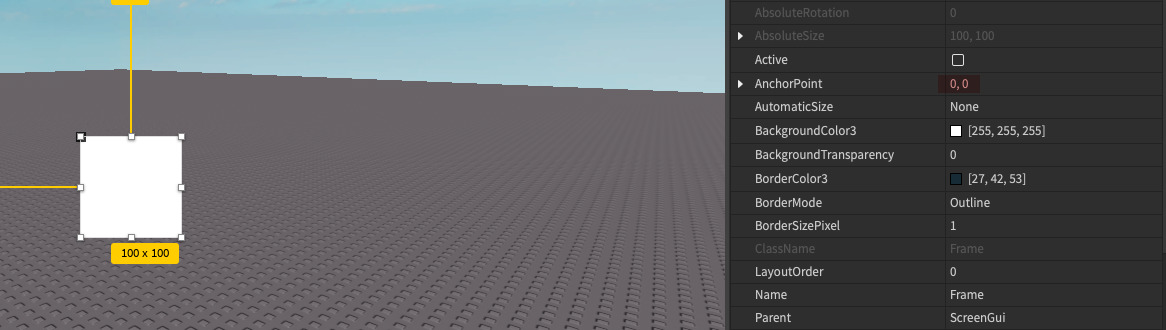
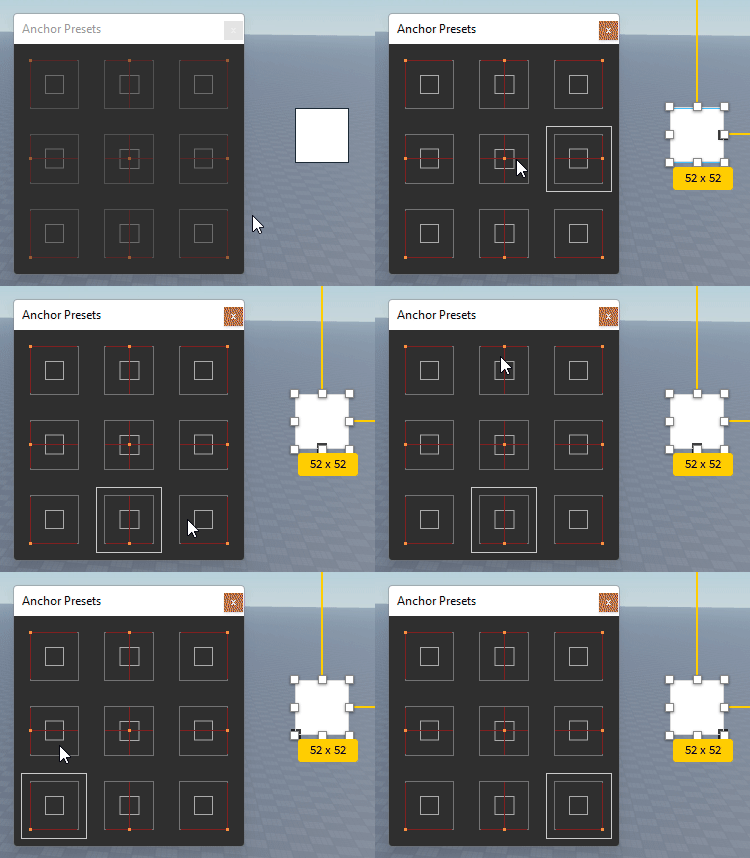
You set AnchorPoint Position by selecting a GuiObject in Explorer, then locating the 'AnchorPoint' property in the Properties window. You can input X and Y values between 0 and 1, or drag the small dot within the UI editor to visually adjust it. This makes it easy to position elements accurately.
Summary of Key Points: Mastering AnchorPoint Position Roblox
In summary, understanding anchorpoint position Roblox empowers you to build robust and beautiful user interfaces. It's the secret to responsive UI that looks great on any device. By applying scale, wisely choosing anchorpoint values, and testing thoroughly, you can elevate your Roblox game's visual appeal. Embrace this powerful tool and transform your UI development process. Your players will certainly appreciate the effort.
Controls UI element origin Ensures consistent scaling Improves cross device compatibility Essential for responsive UI design Key to professional Roblox interfaces Impacts visual presentation
35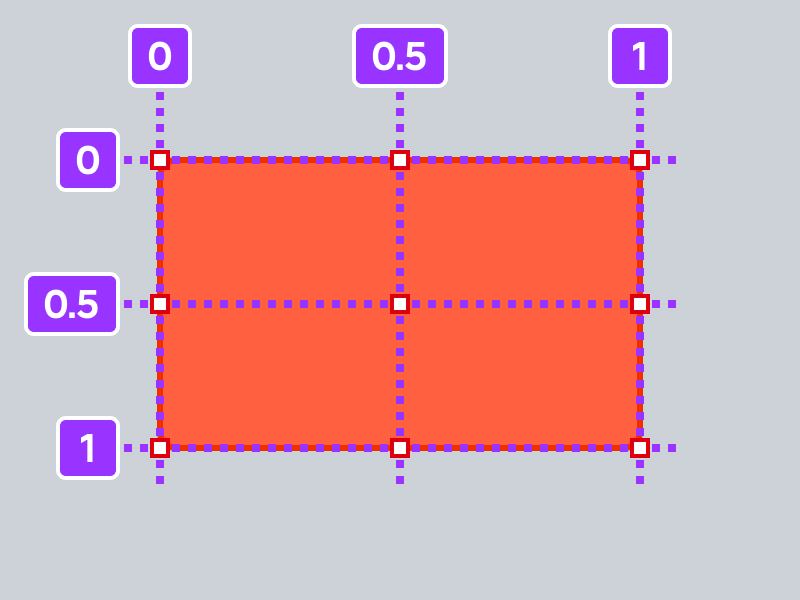


Posicionar Y Dimensionar Objetos UI Documentaci N Del Centro De Anchor Points . UI Positioning For Dummies Using Anchor Points Effectively Common . How To Keep The Original Position When Changing The Anchor Point . Posicionar Y Dimensionar Objetos UI Documentaci N Del Centro De GuiObject AnchorPoint . Anyway I Can Convert A Position To Support An Anchor Point Art




Introducing AnchorPoint Change Your Gui S AnchorPoint With Ease . UI Positioning For Dummies Using Anchor Points Effectively Common 2 690x272 . Posicionar Y Dimensionar Objetos UI Documentaci N Del Centro De Anchor Point Scaling . UI Positioning For Dummies Using Anchor Points Effectively Common 2 690x177 . UI Positioning For Dummies Using Anchor Points Effectively Common


UI Positioning For Dummies Using Anchor Points Effectively Common 2 690x217 . How To Keep The Original Position When Changing The Anchor Point . UI Positioning For Dummies Using Anchor Points Effectively Common 2 1035x292 . UI Positioning For Dummies Using Anchor Points Effectively Common . UI Positioning For Dummies Using Anchor Points Effectively Common 2 1380x336



UI Positioning For Dummies Using Anchor Points Effectively Common . Tips For Positioning And Sizing UI Elements Easily And Efficiently . How To Scale And Position UI The CORRECT Way Community Tutorials . What Will Roblox Look Like In 2026 Blog Graphics 26 . How To Keep The Original Position When Changing The Anchor Point


Introducing AnchorPoint Change Your Gui S AnchorPoint With Ease . AnchorPoint Not Affecting Issues . Anchor Presets Speed Up Your Anchor Point Workflow Community . Definitive Guide To Roblox 2026 Infinity TM 07169 Definitive Guide To Roblox 2026 3 . CAPA Frame Anchor Point Conversion Community Resources Developer 2 690x343



Moving A GUI Anchor Point Scripting Support Developer Forum Roblox 2 463x500 . Definitive Guide To Roblox 2026 Infinity TM 07169 Definitive Guide To Roblox 2026 . GuiBase2d Roblox Creator Hub . Posicionar Y Dimensionar Objetos UI Documentaci N Del Centro De Scale Offset Positioning . Roblox 2026 New Logo REVEAL First Look At The Future Shorts YouTube Oar2


Roblox 2026 Logo REVEALED New Color New Look YouTube Maxres2 . UI Positioning For Dummies Using Anchor Points Effectively Common . Absolute Position Scripting Support Developer Forum Roblox . How To Set Anchor Point To A Part Building Support Developer Forum . Designing UI Tips And Best Practices Roblox Staff Developer Forum